
Welcome to the Sensorfact platform. We are pleased to provide you with access to our software.
Account activation
When your hardware is shipped, you’ll receive an email from Sensorfact with the subject “Your Sensorfact account has been created”, containing your login instructions.
- Please check your spam folder if you don’t see it in your inbox.
- If you still can’t find the email, you can activate your account by resetting your password via this link.
- If that doesn’t work, please contact your onboarding representative for assistance.
Once logged in, you’ll be guided through a short introduction. We recommend following it carefully to get familiar with all the software’s functionalities.
Note: If you already have an account for other sensors, you can use the same login details. In this case, you will not receive an additional activation email.
How to Create an Account to Add Team Members:
1. Access your dashboard:
Log in to your online dashboard.
2. Navigate to user management:
Go to Settings → General Settings → User Management.
3. Add team members:
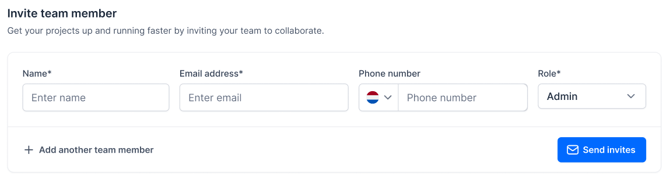
To invite a team member, you’ll need to enter the following information:
- Full Name
- Email Address
- Phone Number (Optional)
- Role (information on user roles & permissions is found here)
You can add multiple users at once by clicking + Add another team member
Please note that we can not create accounts for entire departments such as maintenance@companyname.nl.
4. Account activation:
After adding users, they will receive an email with instructions to activate their account. You can track their progress via the "Status" column in User Management.
5. Update 'contact me for' tags (optional):
Optionally, you can update the "Contact me for" tags for each user. We use these tags to determine who we should contact regarding a specific topic.
Didn’t receive the email?
- Check your spam or junk folder.
- If it’s not there, you can activate your account by resetting your password (link here).
- Still having trouble? Reach out to your onboarding representative or send an email to support@sensorfact.nl.
How to Delete an Account to Delete Team Members:
1. Access your dashboard:
Log in to your online dashboard.
2. Navigate to user management:
Go to Settings → General Settings → User Management.
3. Delete team members:
To delete a team member, you’ll need to to press the delete icon and confirm the deletion of the user account. Please note, only the Admin of the account has the permission to manage the users.

Requesting a new account
If a colleague needs access and the regular process does not work, please send an email to support@sensorfact.nl with their full name and email address.
Please note: we cannot create accounts for shared departmental addresses (e.g., maintenance@companyname.nl).