
What are Alerts?
An alert watches your sensor data and notifies you when an asset behaves in a way you define. You set the conditions once, choose who should be notified, and the platform sends an e-mail and/or WhatsApp message every time the conditions are met.
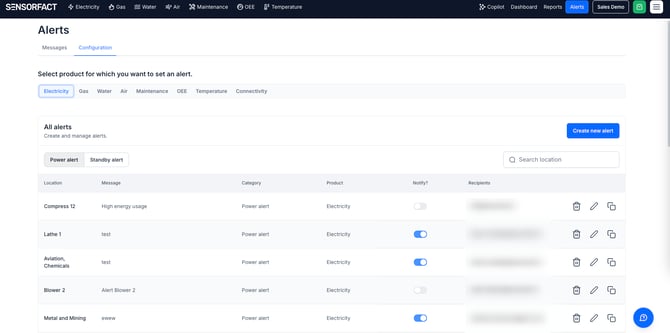
Alert types
- Electricity:
- Standby alert: our algorithm detects automatically when an electricity asset is on standby. You choose after which period the alert is sent and who receives it.
- Power threshold alert: you set a specific threshold for energy consumption. Use it to be notified when a machine switches off unexpectedly, or when the total power becomes too high.
- Natural gas:
- Gas consumption: you set a specific threshold for water consumption.
- Water:
- Water consumption alert: you set a specific threshold for water consumption.
- Compressed air:
- Air flow alert.
- Air pressure alert.
- Air temperature alert.
- Temperature:
- Temperature alert.
- Humidity alert.
- Temperature in combination with Humidity alert.
Why use alerts?
- Stay below your contracted power: set a power alert on a total by your Power Hierarchy, with a threshold just under your contracted limit.
- Catch waste while it happens: a machine left on standby over the weekend is reported the same weekend, not in next month's figures.
- Hear about unplanned stops: get a message when a machine switches off unexpectedly, instead of finding out on the shop floor.
- No dashboard watching: notifications arrive by e-mail or WhatsApp, so nobody has to keep the platform open.
- The right person is notified: each alert has its own recipients, so a gas alert can go to a different team than a standby alert.
Step-by-Step Instructions
- Go to the Alerts menu in the header bar.
- Open the 'Configurations' tab.
- Click 'Create new alert'. The configuration dialog opens.
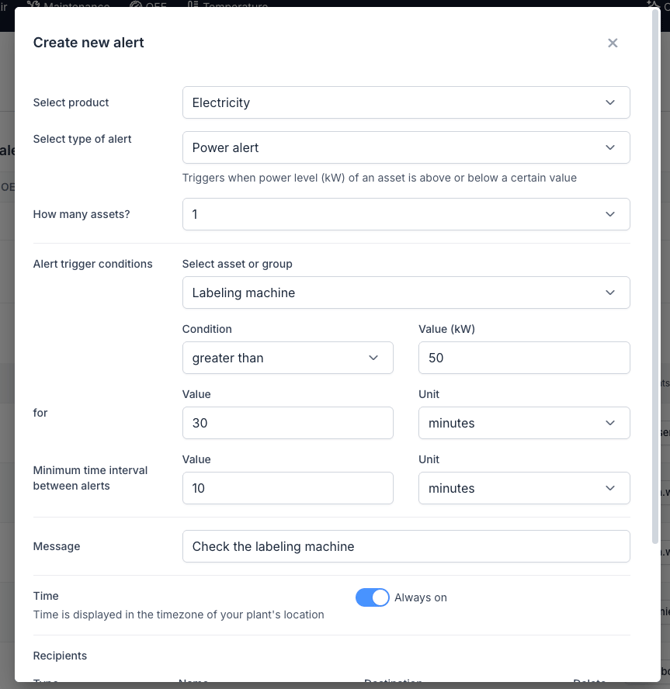
- Select the product (utility), for example Electricity or Compressed Air.
- Select the type of alert.
- Select the Asset or the Group the alert applies to.
- Electricity only: Do you want to setup a power alert on your total power? Use the 'Hierarchy' view to setup an alert on a (virtual) asset.
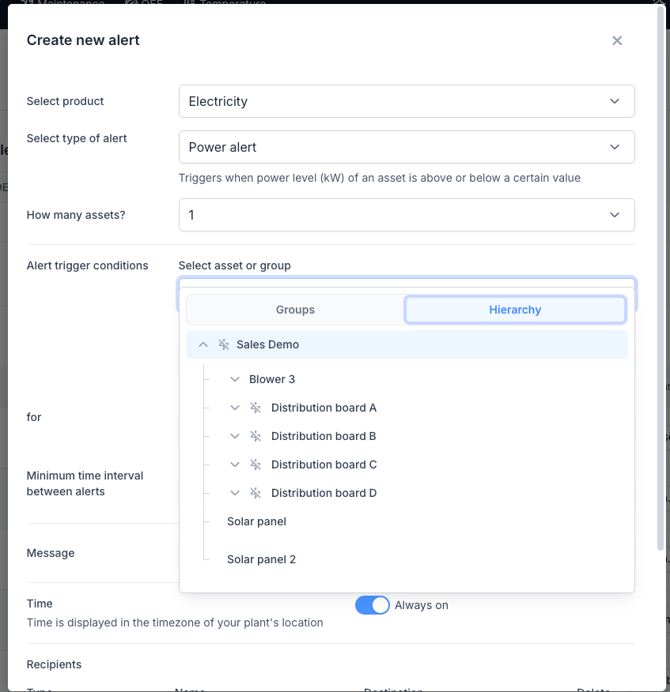
- Electricity only: Do you want to setup a power alert on your total power? Use the 'Hierarchy' view to setup an alert on a (virtual) asset.
- Define how long the condition must be met before the alert is triggered.
- Enter the message to show when the alert is triggered.
- Add the recipients of the alert: an e-mail address or a WhatsApp number.
- Click 'Save'.
Note: Set the duration in step 7 long enough to skip normal short stops. A condition that is met for a few minutes triggers an alert every time it happens.
Note: You can edit or delete an alert configuration later in the 'Configuration' tab.
Viewing triggered alerts
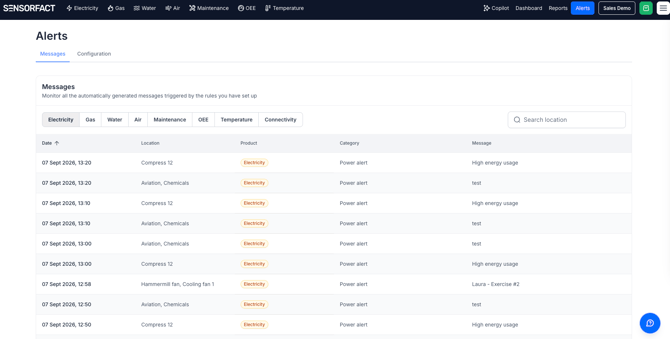
Alerts are sent by e-mail and WhatsApp, and they are also kept in the platform. Open Messages in the Alerts menu to see which alerts were triggered and when.
What if it doesn't work?
- No alerts are arriving — check Messages first. If the alert is listed there, it was triggered and the problem is with delivery: open the alert in the 'Configurations' tab and check the recipients. An e-mail address or WhatsApp number that has changed stops the notifications.
- The alert fires too often — increase the duration the condition must be met before the alert is triggered.