
Before you start
- The energy efficiency KPI must already exist. See Monitoring energy efficiency with Energy per Unit Trends.
- Know the frequency set on the KPI: daily or monthly. The periods you enter must match it.
- Produced units must be whole numbers. Decimals are not supported yet.
Step-by-step instructions
Entering production output numbers by hand
- Open the side panel in the KPI view.
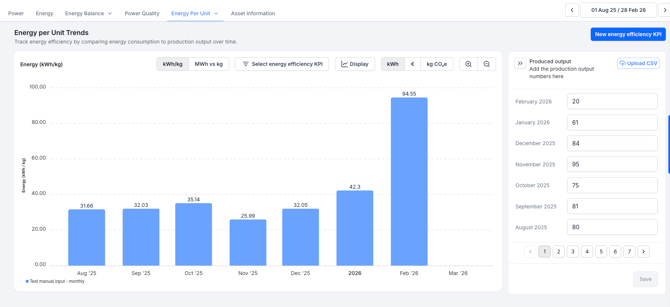
- Find the production output fields for your set frequency, daily or monthly.
- Enter the production numbers in the fields.
- Click 'Save'.
Importing production output numbers from a CSV file
- Click the CSV import button. The import dialog opens.
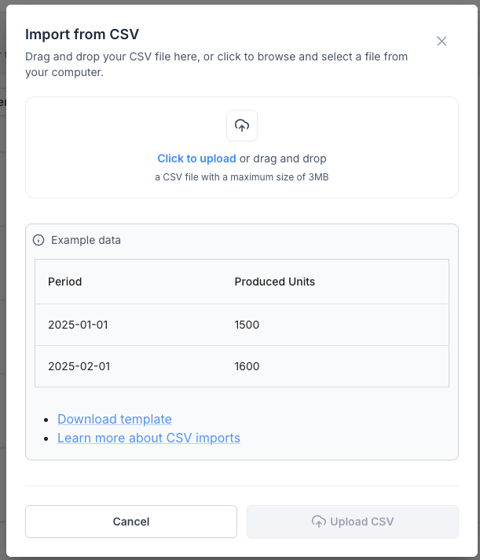
- (Optional) Download the example CSV file from the dialog.
- Fill in your data in the file using the exact column names Period and Produced Units
- If using the monthly frequency: Set the "Period" date to the 1st of the month (e.g., 01/01/2026)
- Save the file as a CSV.
- Attach your file in the dialog
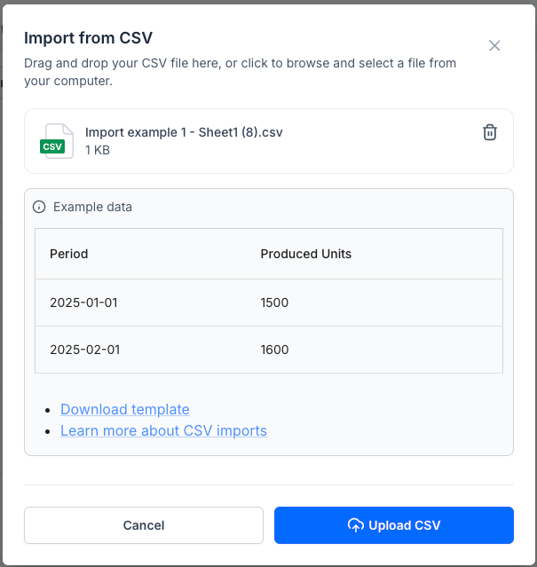
- Click 'Upload CSV'.
- Review the data in the preview window. Rows that cannot be imported are listed in the 'Errors' tab.
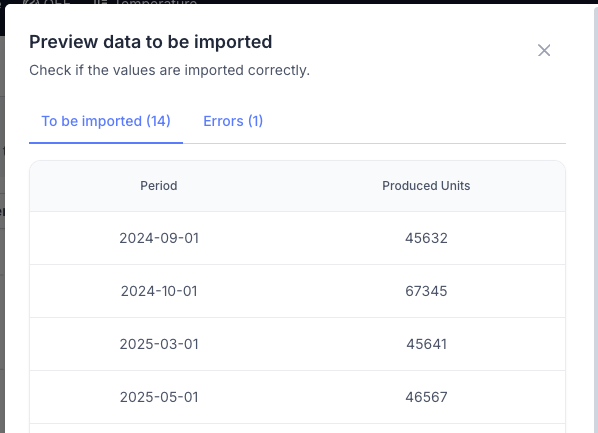
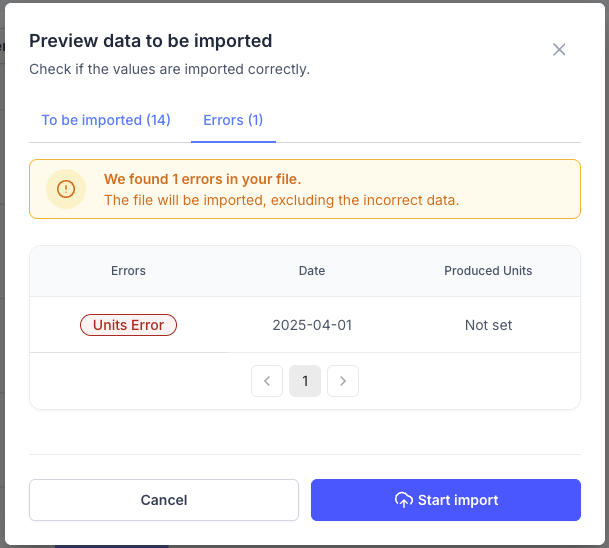
- Click 'Start import'.
A confirmation appears showing how many rows were imported.
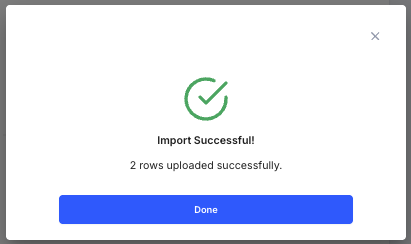
Note: You can change the numbers later in the side panel, or by running a new CSV import.
Formatting the CSV file
- Use the exact column names, including the capital letters: Period and Produced Units.
- Enter each period only once. Duplicate periods (e.g., 2025-12-01 is added twice) block the whole upload.
- The Period must follow one of the following formats:
- yyyy-mm-dd
- yyyy/mm/dd
- dd-mm-yyyy
- dd/mm/yyyy
- d/m/yyyy
- d-m-yyyy
- On a monthly KPI, always set the day to the 1st. For January 2026, use 01/01/2026. A date such as 15/01/2026 is not accepted.
Month Correct format Incorrect format May 2025 01-05-2025 14-05-2025 June 2025 2025/06/01 2025/06/28 July 2026 1/7/2026 15/7/2026 - Enter Produced Units as numbers, not text, and without decimals.
- Only CSV files can be uploaded.
What if it doesn't work?
- The upload is refused — check for duplicate periods and for column names that do not match exactly.
- Some rows are missing after import — open the 'Errors' tab in the preview window to see which rows were rejected and why.
- Monthly numbers land on the wrong period — the day in Period must be the 1st of the month.
- The file is not accepted at all — save it as a CSV file, not as XLSX.