
What is Asset History?
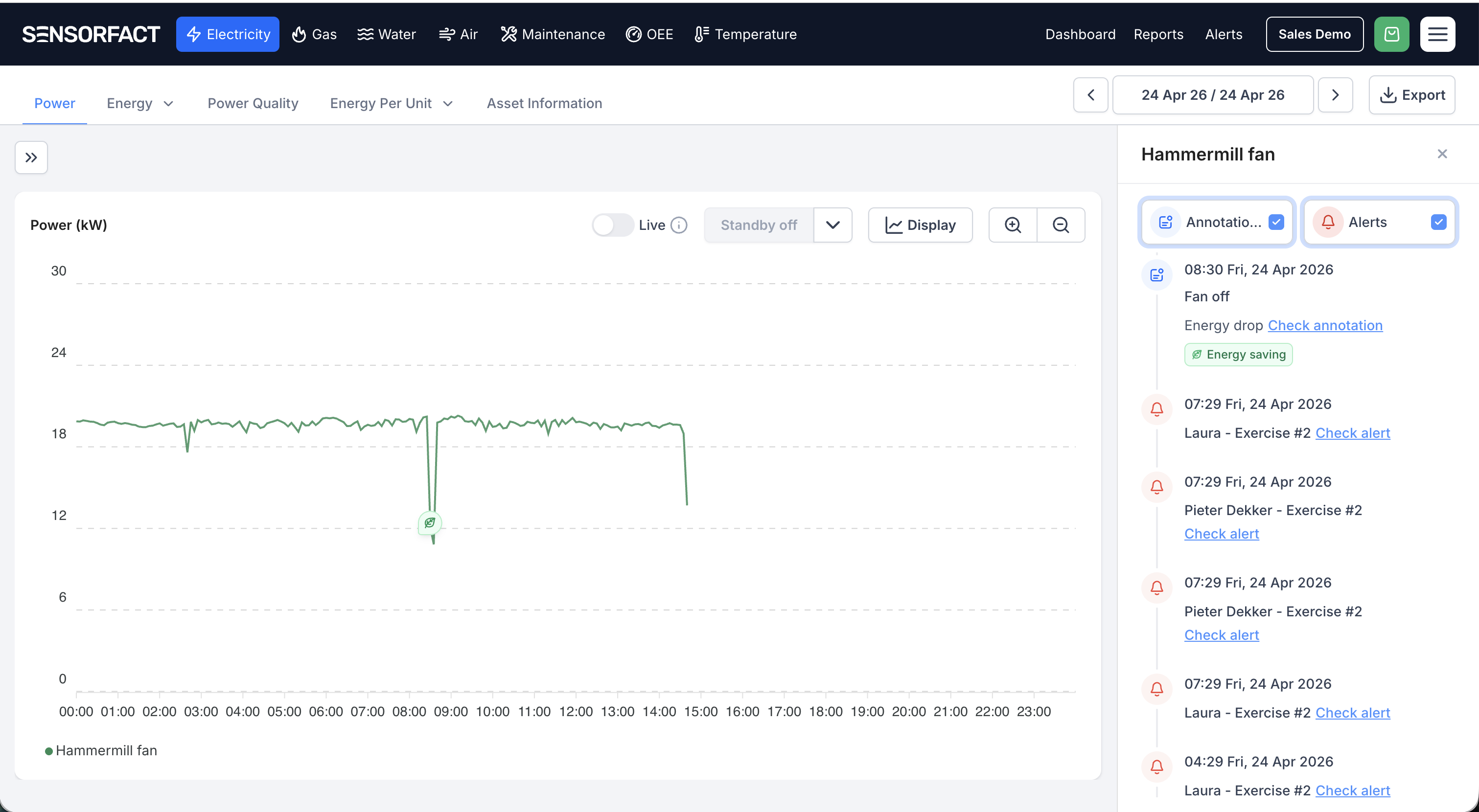
The Asset History is a sidebar in the Power and Energy Trends tab pages that consolidates all Annotations and Alerts for a specific asset into a single, time-ordered view. Instead of jumping between sections to piece together what happened to a machine, you get the full story in one place, alongside the graph.
Why use it?
-
One source of truth per asset. Annotations and Alerts live on the same timeline, so you never have to cross-reference two screens.
-
Spot patterns at a glance. A chronological view makes it easy to see recurring issues, correlate alerts with operator annotations, and understand how an asset has behaved over time.
-
Faster root cause analysis. When something goes wrong, scroll back through the timeline to see exactly what happened, when, and what was flagged.
How to open Asset History
-
Open the Power or Energy Trends tabpage.
-
In the asset list on the left, select a single asset.
-
Click the Asset History button at the top right of the graph area.
-
The sidebar slides out with a chronological list of events for that asset.
What you can do in the sidebar
- Filter by event type. Use the Annotations and Alerts checkboxes at the top of the
sidebar to show or hide either category. - Jump to an event on the graph. Each entry links back to the related point in time. Click
Check annotation or Check alert to inspect it in context. - Scroll through the full history. Events are listed newest-first, with date and time
stamps.
Good to know
-
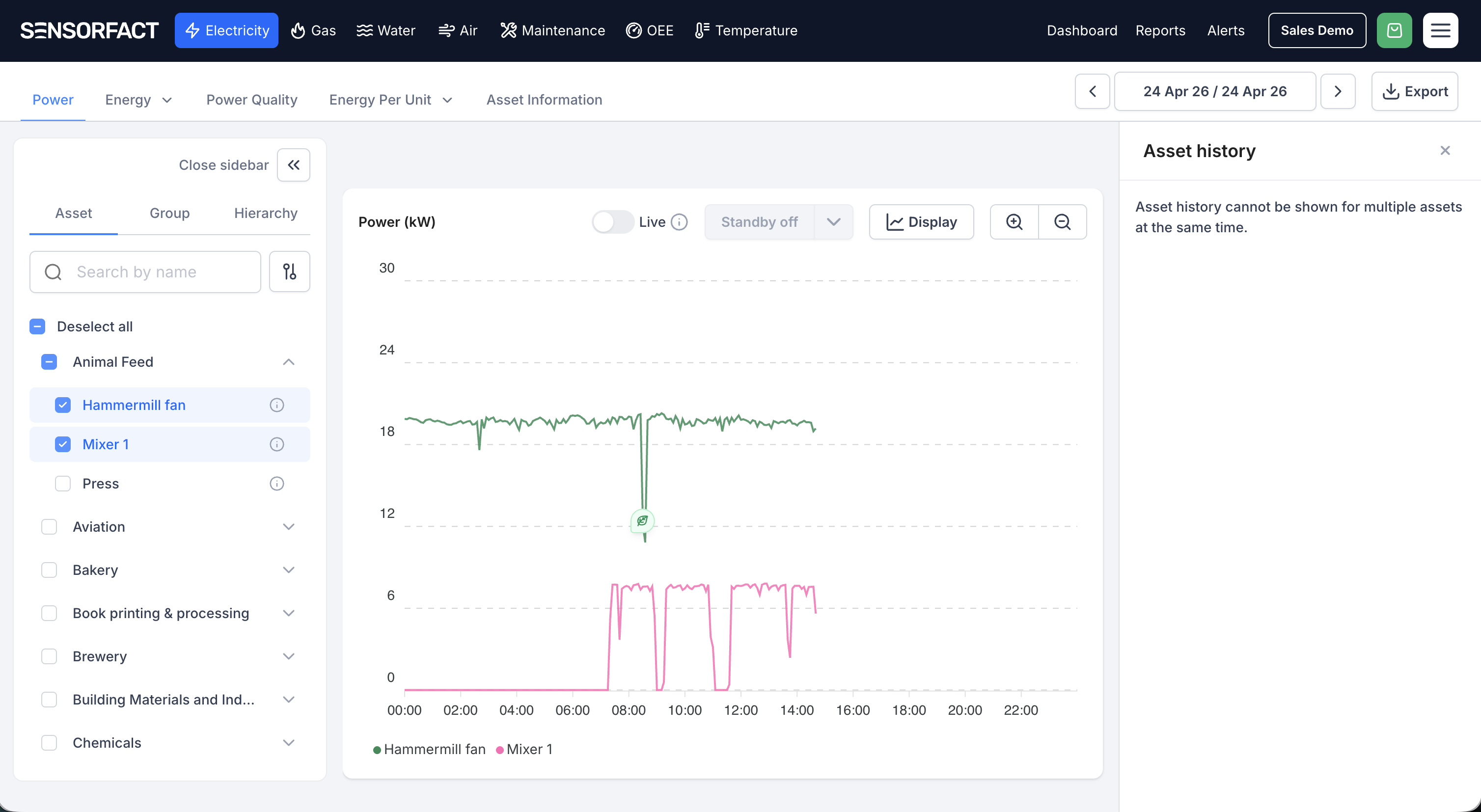
Asset History only works when exactly one asset is selected. If you select two or more assets, the sidebar will show: “Asset history cannot be shown for multiple assets at the same time.” To view history for a different asset, deselect the others so only the one you want to inspect remains checked.
-
If the sidebar looks empty, click the “load more” button to load more events from earlier periods.